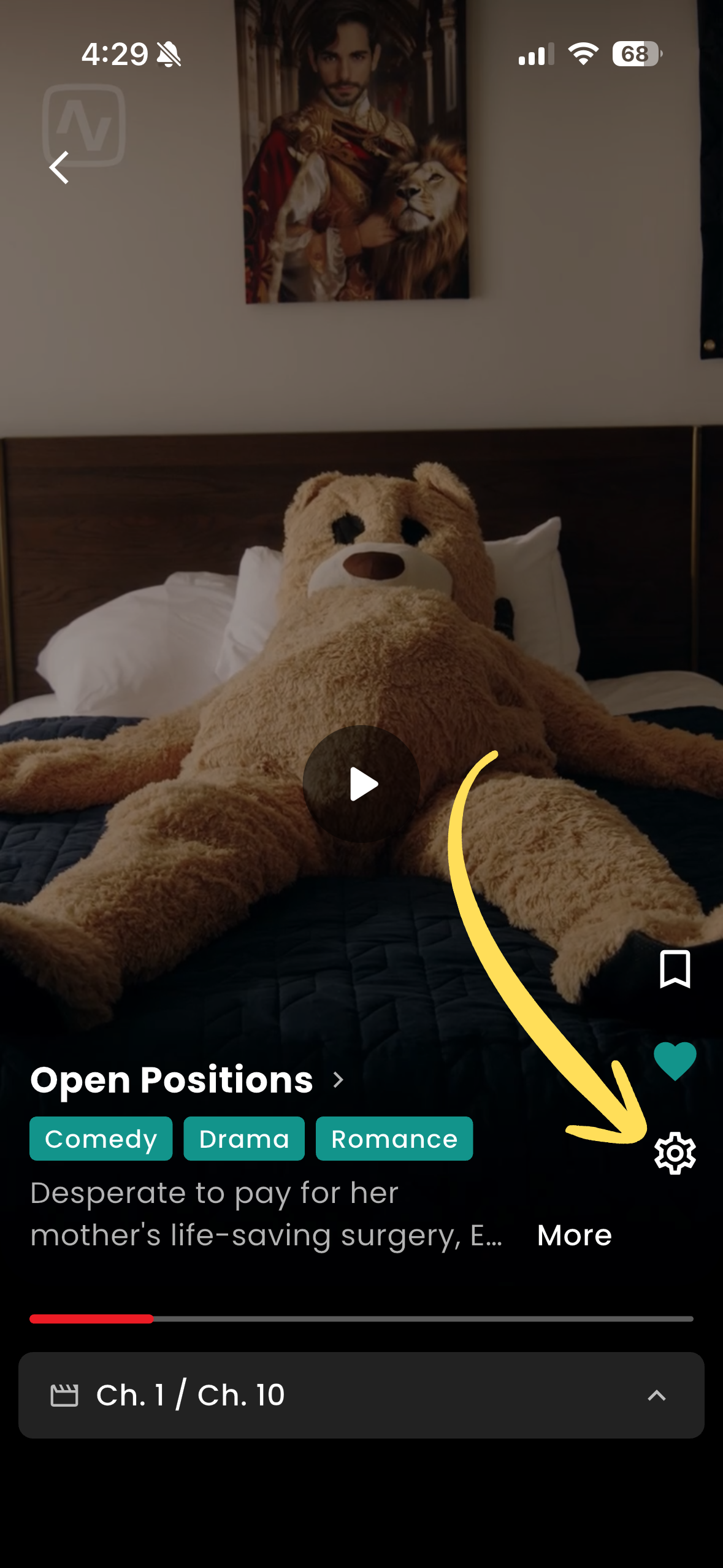
You can turn subtitles on, switch languages, or hide them at any time while watching on Inverted.
Tap the gear icon on the right side of the player

Choose a language under Subtitles, or tap Off
Your selection stays active for the rest of the episode, and Inverted remembers it the next time you open the app.
Subtitles are provided by the filmmaker, so the available languages vary from episode to episode. If you'd like to see your language added to a specific episode, reach out and we'll pass the request along.
<aside> 📬
Need help? Contact us
</aside>